How to Write Newsletters While You Sleep
Most AI writing tools require your computer on. Flyletter's Auto-write runs in the cloud on your schedule, so you wake up to a fresh newsletter draft ready to ship.

3 min read

If you write or manage a newsletter, that means every week (or every other week, no judgment), you sit down, stare at a blank page, and try to produce something worth reading.
Sometimes it flows. Most of the time? It doesn't.
You push it to Tuesday. Then Thursday. Then you tell yourself you'll "double up next week" (you won't). And slowly, that publishing streak you were proud of starts to crack.
I built Flyletter's Auto-write feature to fix this exact problem. And the way it works is different from anything else out there.
How Flyletter's Auto-write actually works
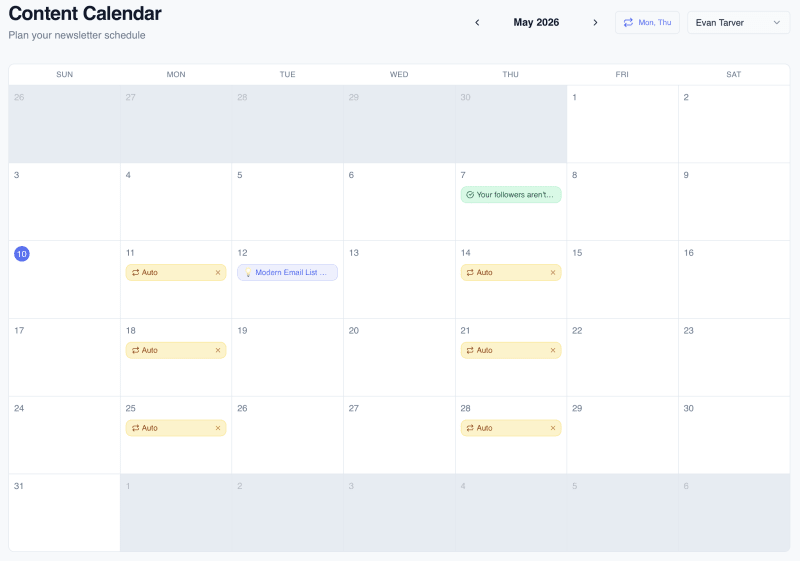
With Flyletter's Auto-write feature, all you have to do is set a writing schedule, and Flyletter will automatically write newsletter drafts on that schedule while you sleep. This is better than even the most powerful AI tools, such as Claude Cowork, which require your computer to be on when running autonomous tasks for you.
Instead, Flyletter's newsletter pipeline runs overnight on your set cadence, writing newsletters while you sleep so you always wake up to fresh content as if you'd hit "write" yourself. All you have to do is review, refine, and send.
When Flyletter's auto-write runs, it will use topics from:
- Your saved ideas first: Organize your saved ideas in the order you want them written by sorting newest first, oldest first, or manual sort.
- Topic suggestions as fallback: Ran out of saved ideas? No worries. Flyletter will use your topic suggestions and replace any it uses.
Pro tip: I spend about an hour every quarter organizing my saved ideas in the order I want them written, and set a weekly writing cadence. That way, I can write on-brand newsletters on auto-pilot based on my actual ideas.
How to set an automatic writing schedule
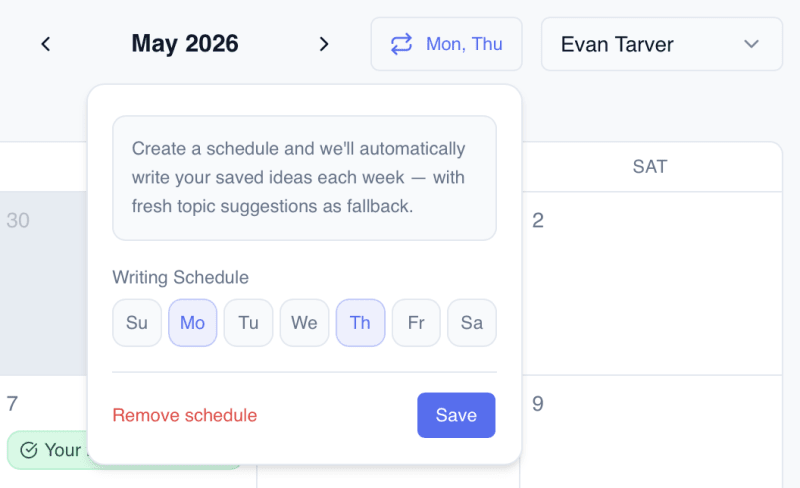
Pick which days you want Auto-write to run. Monday and Thursday? Just Wednesdays? Every single day because you're ambitious? Your call.
You can also manually schedule saved ideas to be written in the future. And, you can even add a publish date for each topic to manage your publishing calendar (for content planning purposes only). Simply navigate into one of your saved ideas and click the calendar icon in the menu.
When you wake up, you'll see a fresh newsletter waiting for you with a "Written!" badge. All you need to do is review, refine, and approve.
Bottom line
Consistent publishing is the single biggest factor in growing a newsletter. Not viral posts, not perfect subject lines, not some magic growth strategy. Just showing up, every week, with something worth reading.
Auto-write makes showing up automatic. The complete guide to AI newsletter writing covers the rest of the system.
Set up your Auto-write schedule today. Load in your ideas, pick your days, and tomorrow morning, wake up to a finished draft. Then do what only you can do: make it yours and hit send.