Generate On-Brand Newsletter Images in Seconds
Most AI image tools produce generic visuals with your brand name slapped on. Flyletter's Illustrator pulls from your visual style to generate on-brand images.

5 min read

On-brand image generation only works if the AI actually knows what "on-brand" means for you. Without a strong visual style to reference, you're just getting generic images with your brand name on them. Which is basically what stock photos are, but with extra steps.
Flyletter's Illustrator Agent pulls directly from your brand profile's visual style section to generate featured images and inline images that actually look like they belong to your brand. Every time. No Canva. No stock library rabbit holes. No 47-minute detours that kill your creative momentum (yes, I timed myself once... it was bad).
I'm going to walk you through exactly how it works, how to use it, and why it's better than trying to generate images on your own.
How Flyletter's Illustrator Agent understands your visual style
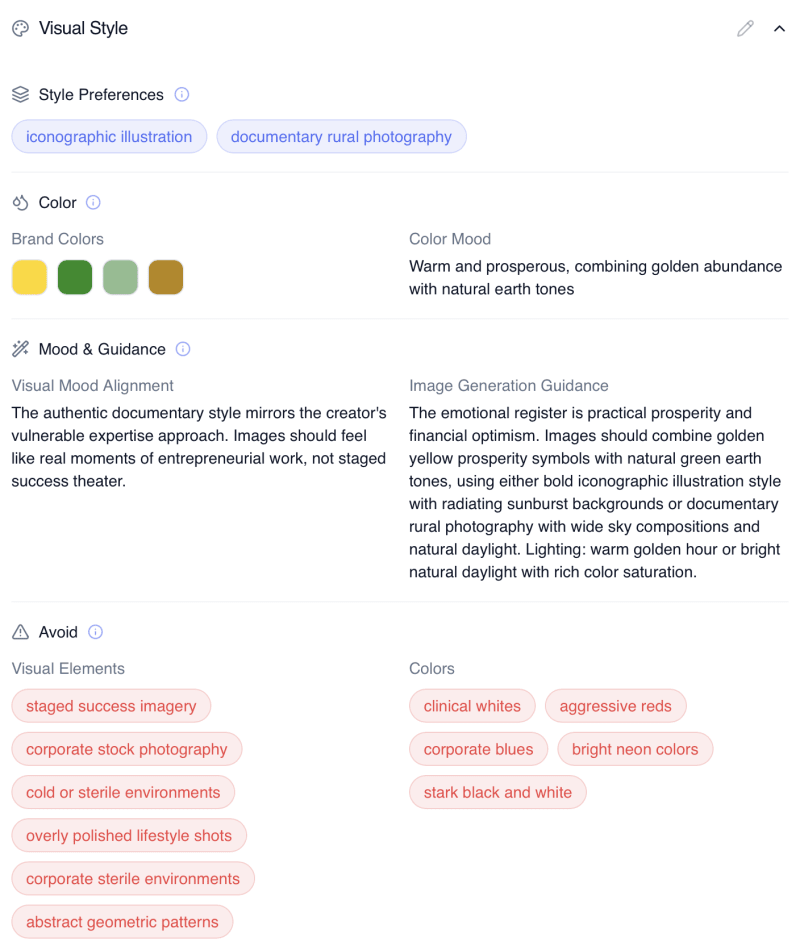
Flyletter's Illustrator Agent pulls directly from your brand profile's visual style section, automatically extracting your brand colors, color mood, visual mood alignment, and generation guidance from your existing visual samples.
So if your brand profile says your visual mood is "warm and minimal" with earth tones, the agent already knows that before it generates a single pixel. It reads your brand's visual style the same way Flyletter's Writing Agent understands your writing voice.
Quick tactical note: take five minutes to review your brand profile's visual style section before your first generation. The agent is only as good as the inputs it's working from. Make sure your colors and mood descriptions actually reflect what you want.
So what happens when you actually need an image?
Featured newsletter image generation
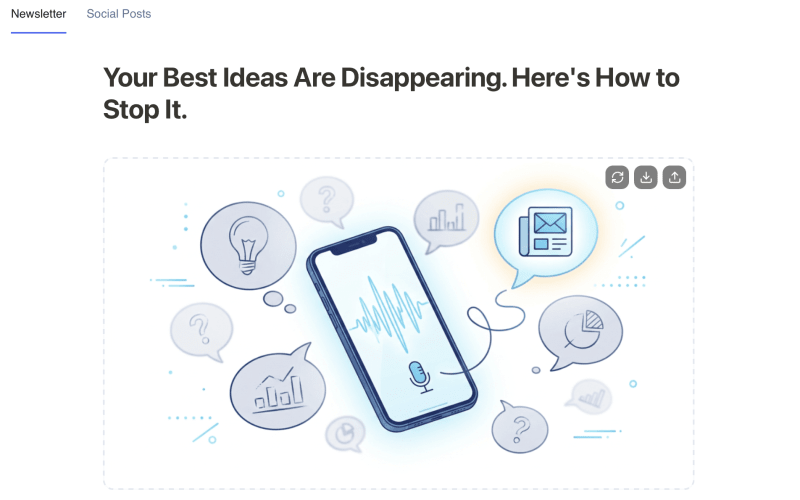
When you write a newsletter, Flyletter's multi-agent content team not only crafts your newsletter, but the Illustrator automatically generates your featured image based on the newsletter draft.
What's happening behind the scenes is that the Illustrator crafts a detailed image generation prompt based on your entire newsletter draft and brand profile and passes it to an image generation agent who uses it to create the actual image.
The Illustrator's prompt distills your entire newsletter draft into a core visual concept that aligns with your brand and includes things such as camera lens, lighting, angle, and more (you know, things you'd never think of including in an image prompt to 10x the result).
If the first result isn't quite right, however, you can regenerate the featured image by clicking the "regenerate" button and adding custom direction in the prompt field, or leaving it blank and letting Flyletter take another crack at it.
No more opening a new Canva tab and rage-browsing stock libraries at 11pm.
Inline newsletter image generation
Featured images may get all the above-the-fold attention, but they're not the only visuals you can generate for your newsletter. The Illustrator Agent can also generate inline images inside your newsletter, and this is where things start to feel like a superpower.
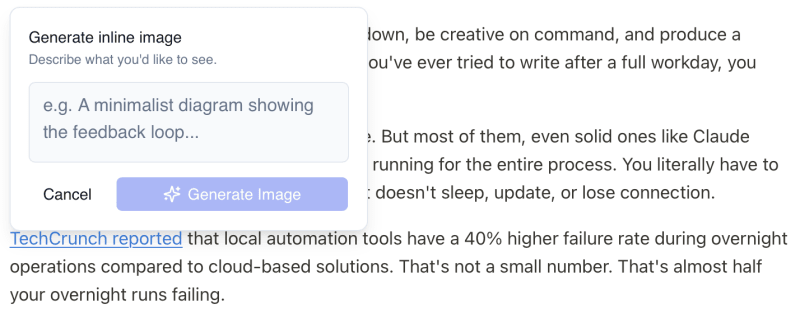
All you have to do is type a slash command "/" in your newsletter draft wherever you want to generate an image, and then give it a prompt describing what you want.
In this instance, the Illustrator takes that basic direction you gave it (because it needs a little bit of context) and runs it through the same rigorous steps to create a 10x image prompt that's passed to the image generation agent to create. This way, you can create endless relevant, on-brand newsletter images without leaving Flyletter.
The more specific you get with your prompts, the better the results. "Chart-style visual showing compounding growth with earth tones" is going to land way closer than "something about money."
But Flyletter doesn't force you into AI-only visuals. Sometimes you have the perfect screenshot, or a diagram you sketched out, or a photo you actually took. You just upload it directly, both as a featured image or an inline image within the newsletter itself.
Start experimenting
Remember those 47 minutes I was spending per image? Most of that time is now measured in seconds. Regenerate, review, publish. The friction point that used to break my creative flow is now just another automated step in writing a newsletter with AI.
Start with your next newsletter. Let the Illustrator generate your featured image, play with custom direction, and see how close it gets to your brand aesthetic on the first try. You might be surprised.