Flyletter Features: Every Tool in the Platform and How It Works
All ten Flyletter features, one at a time: what each one is, how it works, and what it does for your newsletter.

17 min read

Flyletter is an AI newsletter platform for creators who run their own publication. It learns your voice from three writing samples, stores it as a structured brand profile, and runs a team of specialist agents that take an idea all the way to a finished draft with images and social posts attached.
This article highlights ten features, and for each one: what it is, how it works, and what it does for you.
The brand profile comes first, because every other feature reads from it. Then the features that turn a half-formed thought into a brief, the seven agents that turn that brief into a finished draft, the workspace where you sharpen the result, and the four features that carry the finished piece out into the world. I built all ten because I needed them to run my own newsletter.
Flyletter Features at a Glance
| Feature | What it does |
|---|---|
| Brand Profile | Stores a structured record of how you write, built from your actual writing |
| Ideas | Turns raw thoughts and suggested topics into structured content briefs |
| The Agent Team | Runs seven specialist agents in sequence to take a brief to a finished draft |
| Newsletter Studio | Holds the draft and lets you refine it without losing your voice |
| Images | Generates featured and inline images from your brand's visual direction |
| Repurposing | Turns existing source material into a newsletter in your voice |
| Auto-Write | Produces drafts on a schedule from Flyletter's servers |
| Social Posts | Writes value posts and promotion posts for four platforms |
| Claude Connector | Loads your brand profile into Claude conversations |
| Publishing Integrations | Creates a draft on beehiiv, Kit, or WordPress |
Brand Profile
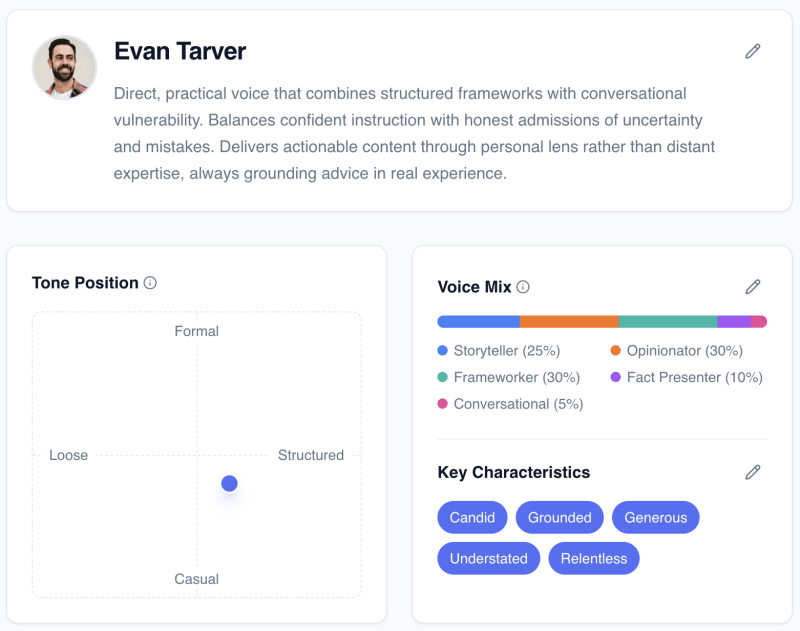
Flyletter's brand profile is a structured record of how you write, built from your actual writing rather than from a tone dropdown.
Most tools ask you to pick a tone. Professional, friendly, witty. Three words, and the model fills the rest of the gap with its own defaults, which is why the output lands somewhere between a LinkedIn post and a press release no matter what you picked.
You build the profile from three writing samples. Paste them in directly, or connect a content source and let Flyletter scan it, like a blog or an existing newsletter archive. Everything it finds comes in selected by default, and you deselect whatever doesn't represent the voice you want going forward.
Two kinds of input build the profile, and they do different jobs.
Declared facts are what you tell Flyletter directly. Who your audience is, what your brand stands for, what topics you cover. These are the rules you set on purpose. They don't get inferred and they don't get overruled.
Extracted evidence is what Flyletter pulls out of the writing itself. It reads your samples against how a model writes by default, then keeps the differences.
Declared facts tell the system what you want. Extracted evidence tells it what you actually do, which matters because writers are frequently wrong about the second one.
The finished profile is a screen you can read:
- A voice summary in plain language
- Tone position on two scales, loose to structured and casual to formal
- Voice mix across five modes
- Core characteristics, four to six single-word traits
- Forbidden elements, each paired with what your writing uses instead
- Writing style habits
- Audience focus
- Your writing samples, grouped by where they came from
- Visual direction, which drives image generation
Every part of it is editable. Add a habit, remove a trait, rewrite the forbidden list, swap a sample out. There's also a refine chat where you talk through voice adjustments in plain language, and those adjustments carry straight through to what the writing agents read.
Add samples later or connect a new source, and you can refresh the profile so it rebuilds from the updated set. Flyletter also suggests profile updates on its own as you publish, based on where your newer writing has drifted from what the profile currently says. Your voice in March is not your voice in September, and the record should move with you.
Every agent reads this profile before it writes a word. Get it right and everything downstream inherits it. Get it wrong and everything downstream inherits that too, which is why it's the first thing you build.
Start with how to create your brand profile, or read the deeper breakdown of what it captures from your writing.
Ideas
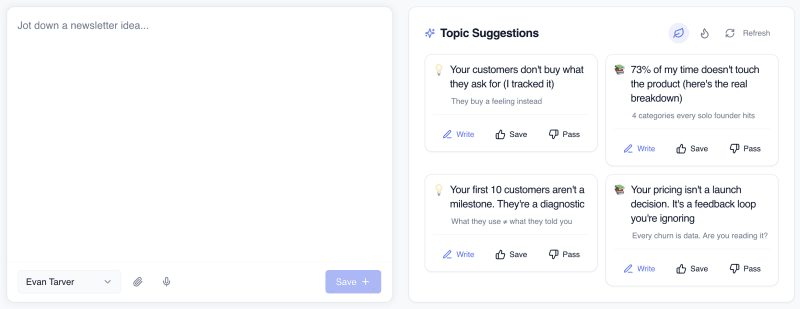
Ideas is where Flyletter turns raw thoughts and suggested topics into structured content briefs.
A brief is the handoff. It names the angle, the hook, and the structure, so nothing downstream has to guess. Ideas works in four parts, and each one reads from your brand profile rather than starting cold.
Capture
Three ways in. Type the idea. Dictate it with voice, which works on your phone and covers the ideas that arrive while you're walking somewhere. Or attach a file, including screenshots, PDFs, documents, images, and notes.
Every idea carries a status through its life. Raw, then writing, then written. Nothing gets thrown away for showing up half-formed.
Suggestions
Flyletter generates topic suggestions in two flavors. Evergreen suggestions cover what your audience consistently cares about, built from the audience, positioning, and philosophy in your brand profile. Timely suggestions run the same reasoning against current trend data.
These aren't generic topic lists. Each suggestion names a specific reader situation, identifies what you know about that situation that your reader doesn't, and phrases the angle in your own register. Each one arrives with a rationale, a goal, an audience, and a suggested format, so you can judge it in about four seconds.
Upvote the ones that fit and downvote the ones that don't. Those votes feed back into generation, and the suggestions sharpen over time.
Thought Partner
Every saved idea has a chat attached to it. The Thought Partner behaves like an opinionated senior editor rather than a cheerful assistant. It stays short, it names a weak angle instead of validating it, and it closes with a specific recommendation rather than an open question. It already knows the idea, your profile, and your audience, so you skip the part where you re-explain your business.
Three one-click actions do most of the work.
Explore angles returns three alternatives on the same topic, each one distinct enough to produce a completely different newsletter. They're numbered, so you reply with a number to pick one.
Devil's advocate builds the strongest case against your current angle, names what a skeptical reader would push back on, and shows you how to answer it inside the piece instead of in your replies.
Search web runs live research. It infers the most useful search from your current notes, runs it, and comes back with sources.
You can also just talk to it, and your notes update as the conversation develops the idea.
Content Brief
When the idea is ready, the brief action produces the structured version: angle, hook, structure. That brief feeds the writing pipeline directly, so your newsletter gets written from a developed concept instead of a bare topic string.
You show up with a hunch and leave with a researched brief. The thinking work that usually eats a morning happens in a conversation.
More on the capture side in never run out of newsletter topics, and more on generating them in nine ways to come up with newsletter ideas.
The Agent Team
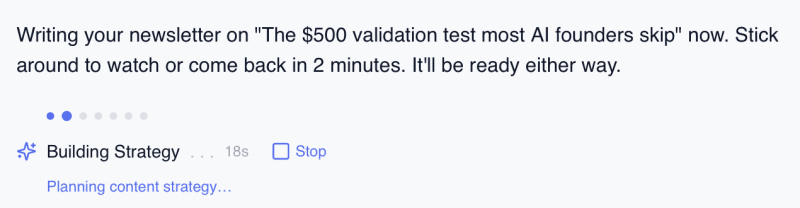
The agent team is a relay of seven specialists that mirrors how a real content team works.
- Strategist sets the angle, the audience, the central claim, and where the piece lands
- Researcher gathers the supporting evidence
- Architect builds the structure and decides what each section has to accomplish
- Writer drafts
- Editor passes the draft against your brand profile and the quality bar
- Illustrator produces the featured image
- Publicist produces the social posts
You pick the starting point. A topic suggestion, a saved idea, a finished content brief, or something you type on the spot.
From there the pipeline runs each stage in sequence and streams the progress to your screen, so you watch the work happen instead of staring at a spinner. If a stage fails, the run resumes from that step rather than starting the whole thing over.
Compare that to one generalist call. You paste a giant prompt into a chat, ask for strategy and research and structure and prose all at once, and the model splits its attention across every one of those jobs while slowly forgetting the voice instructions you gave it forty lines earlier.
The longer the chat runs, the further the voice drifts. That isn't a prompting skill issue. That's what happens when one call carries seven jobs.
A strategist who also writes and also edits does all three worse. Split the work and every agent's instructions stay narrow and specific, which is the condition under which models actually perform. Your Editor also arrives with fresh eyes, because it never wrote the thing in the first place.
I broke down the full mechanics in your AI content team, and the voice architecture underneath it in how Flyletter is engineered to write in your voice.
Newsletter Studio
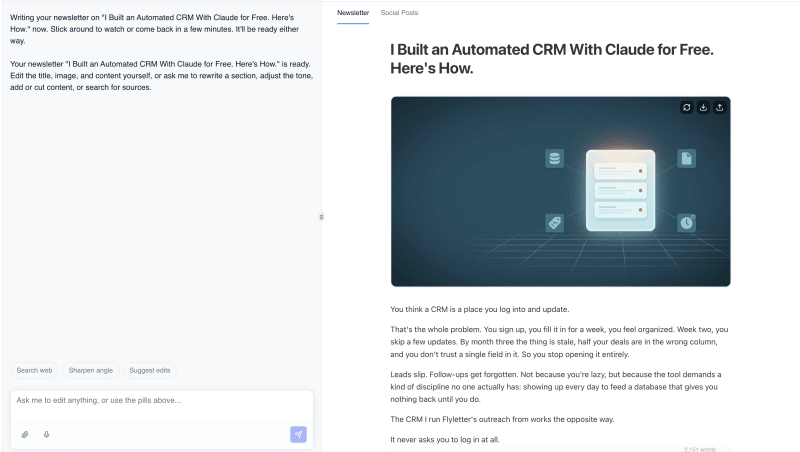
Newsletter Studio is the workspace where your draft lives once it exists.
You refine it by chat, right alongside the draft. Ask for the change in plain language and the draft updates. You can also edit directly, and everything auto-saves as you go. Version history keeps every state, so cutting a section you later want back costs you nothing.
The full flow from brand profile to first draft is in how to write newsletters that sound like you in minutes.
The featured image sits in the same view. Regenerate it, or upload your own. Tabs split the newsletter from the social posts, and on your phone the chat, the newsletter, and the socials each get their own tab so the layout stays usable on a small screen.
Images
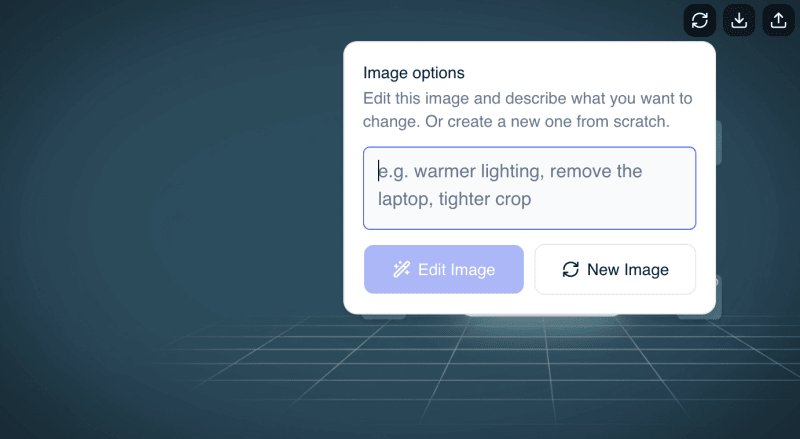
Images generates the visuals for your newsletter through the Illustrator agent, both the featured image at the top and the inline images that break up the body.
Your brand profile carries a visual direction that covers style, composition, lighting, color mood, and the things your brand should avoid. The Illustrator turns that into a visual brief and generates against it, so the image looks like it belongs to your brand instead of like generic stock AI art.
You can regenerate with a custom prompt when you want something specific, or upload your own image and skip the agent entirely.
Mismatched visuals are their own kind of voice dilution. Sharp writing under a stock photo of a handshake tells your reader two different things about who you are.
The full walkthrough is in generating on-brand newsletter images.
Repurposing
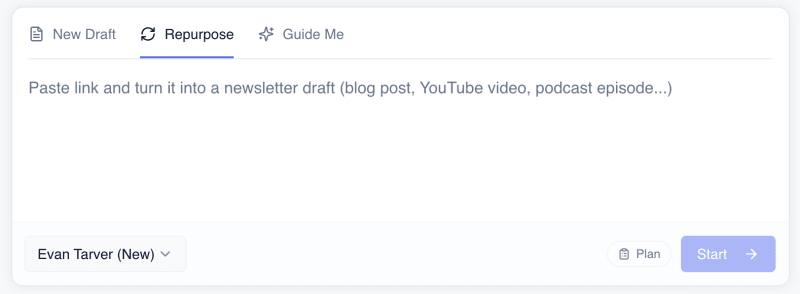
Repurposing turns content you already have into a newsletter.
Give Flyletter a URL, a YouTube video, or pasted source material. It extracts the content, including video transcripts, and runs it through the pipeline as source material rather than as a topic. The result keeps the original arguments and examples, written in your voice and structured as a newsletter.
The same path covers voice memos and meeting transcripts. Talk through the idea, paste the transcript, and get back a structured draft built from what you actually said.
Most repurposing tools give themselves away right here. They summarize, so the output reads like the original wearing your name. Your brand profile governs transformed content exactly the way it governs original content. Different input, same voice on the way out.
Auto-Write
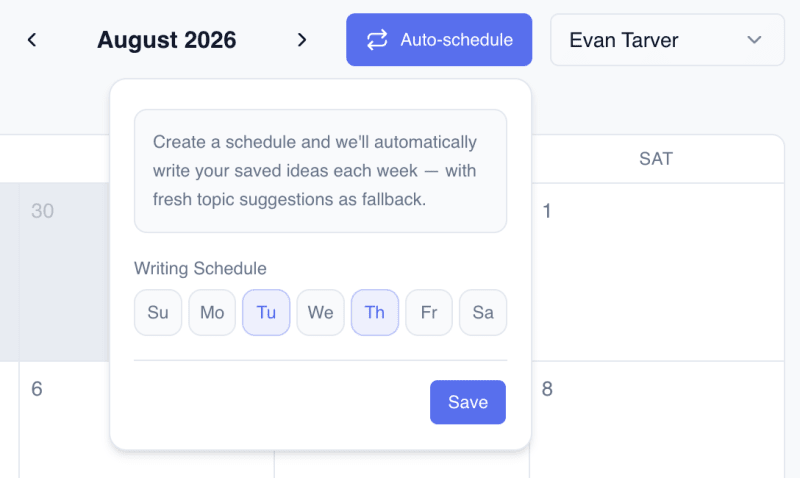
Auto-Write produces newsletter drafts on a schedule.
You pick which days of the week it runs. On those days Flyletter selects the next topic and runs the full pipeline, and the finished draft shows up with a "Written!" badge waiting on your review.
Selection follows a fixed order. Saved ideas go first, in whatever sort you've set (newest first, oldest first, or manual). Topic suggestions are the fallback once your idea queue runs dry, and when one gets used, a fresh suggestion replaces it. Your own thinking always goes first.
The part that separates this from the agentic tools you've seen is where it runs. Auto-Write runs on Flyletter's servers, not on your machine, so your computer can be off while it works.
You can also schedule an individual idea to write on a specific future date, and any idea can carry a target publish date so your content calendar reflects what's actually coming.
Consistency is the biggest factor in newsletter growth, and it's the first thing to break. Nobody quits a newsletter on purpose. They get busy, they skip a week, they skip another one, and by month four the thing is dead without anyone having decided to kill it. Auto-Write removes that failure point by making the draft exist whether or not you had a good week. Showing up becomes infrastructure instead of willpower.
The setup walkthrough lives in how to write newsletters while you sleep.
Social Posts
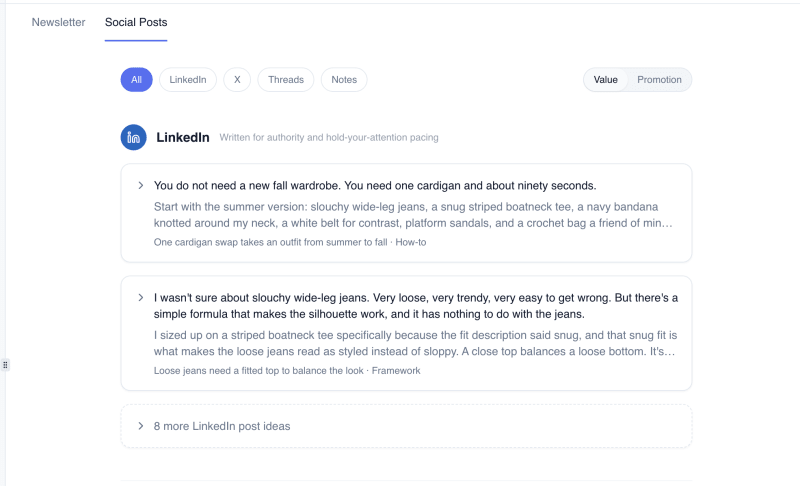
Social Posts turns your finished newsletter into platform-native posts for LinkedIn, X, Threads, and Substack Notes.
The Publicist writes two kinds, and they have different jobs.
Value posts stand alone. Each one pulls an idea out of the newsletter and delivers something useful on the platform itself, with no links and no calls to action. Their job is reach and trust with people who have never heard of you.
Promotion posts run as a short campaign about the issue itself. A teaser before it goes out, a post the day it lands, and a summary a few days later covering what the issue said and what it held back. These carry the links, and their job is conversion.
A post that exists only to say "go read my newsletter" earns nothing. Separating the two lets each one do its job instead of compromising both.
Every post gets written to its platform's norms rather than being the same text reformatted three ways, and each one comes with three alternative openings you can swap between. Everything is editable inline before you copy it out.
Distribution is usually where voice dies. The Publicist reads the same brand profile as every other agent, so the person who finds you on LinkedIn sounds like the person who shows up in their inbox.
More on the mechanics in turning your newsletter into social posts.
Claude Connector
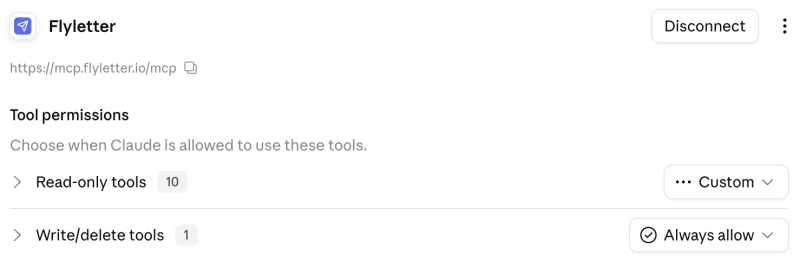
The Claude connector loads your Flyletter brand profile into Claude.
Add the connector in Claude's settings and authenticate with your Flyletter account. Setup takes a few seconds. From then on, in any Claude conversation, you ask Claude to write in your brand voice and it pulls the full profile from Flyletter to do it.
That covers whatever you're working on. Emails, pitches, landing page copy, proposals, LinkedIn comments. Claude can also read your newsletters and your saved ideas for context inside a conversation, and you can save a new idea straight back to Flyletter without switching tabs. Ideas rarely arrive while you're sitting in your newsletter tool. They arrive mid-conversation, while you're working through something else.
Plenty of what you write has nothing to do with newsletters, and your voice should hold up there too. Your profile stops being locked inside one app and starts traveling with you.
Setup guide and permissions are in how to connect Flyletter to Claude. If you're weighing Flyletter against the general assistants, I wrote an honest comparison of Flyletter vs ChatGPT vs Claude.
Publishing Integrations
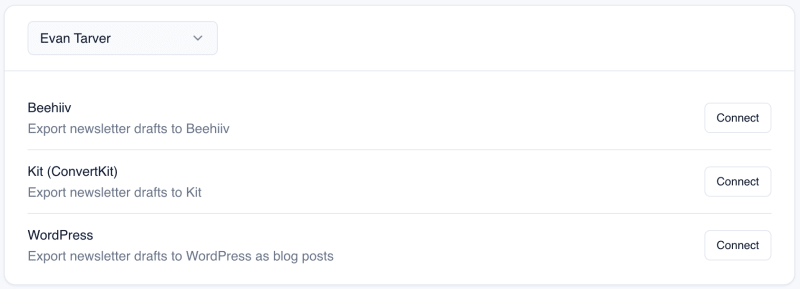
Publishing integrations send your finished newsletter to the platform you actually publish on. Flyletter supports beehiiv, Kit, and WordPress.
Connect a platform once in settings with an API key. Integrations are scoped per brand profile, so if you run two newsletters, each one connects to its own destination and they never cross. From the newsletter, pick the destination and Flyletter creates a draft there.
Be clear on what that means. Flyletter creates a draft on your platform. It does not send to your list and it does not schedule a send. It puts the draft in place and stops. The last click on something going to thousands of inboxes belongs to you, and a tool that quietly took it would be a tool I wouldn't use myself.
Some platforms don't allow this kind of integration at all. Substack is the obvious one. If you publish somewhere Flyletter can't connect to, copy the finished newsletter out of Flyletter and paste it straight into your editor. The voice the agents wrote in is the voice you publish, whatever you send it from.
Ten Features, One Record
The mechanics end where they started. Your profile goes in, the draft comes out on your platform, and your finger stays on the send button.
Ten features and one record underneath all of them. That's the whole design. One workspace, one profile, one voice, whether the output is a newsletter, a featured image, a value post on LinkedIn, or a Claude conversation you started at midnight on a whim.
If you want to see this in motion rather than in a list, the use cases article walks the same features through a real newsletter operation, and the complete guide to AI newsletter writing shows where each one fits in the full system.